
Set your stock
Choose a sheet preset or enter measured dimensions. Add available quantities, or use unlimited stock to estimate how many sheets to buy.
Enter your stock sheets, part sizes and saw kerf.
Get a clear cutting layout. Make more of your material.
Free, no signup Runs in your browser
Enter your stock and parts, then optimize.
Get actual layouts, usable offcuts and an ordered cut list.
Your project stays in your browser.
No project uploads. GA4 measures visits and tool usage.
Start with what you have. Plan what you need.
Plan cabinet sides, shelves, drawer bottoms and other rectangular panels before cutting into stock. This woodworking cut list calculator groups parts by material and shows which sheets to use, where to cut and what remains.
It works with plywood, MDF, melamine and custom sheet materials. Give stock and parts the same material name to keep them together: a plywood shelf will never be assigned to MDF. Different thicknesses should use different material names, such as “Plywood 18 mm” and “Plywood 12 mm.”
Cutting lumber, pipe, tube or bar instead? Use the linear cut list calculator to plan efficient cuts from stock lengths.
Choose a sheet preset or enter measured dimensions. Add available quantities, or use unlimited stock to estimate how many sheets to buy.
Enter a name, length, width and quantity for every part. Duplicate rows, import CSV or paste columns from a spreadsheet.
Set the blade kerf, edge trim and grain direction. Dimensions should describe finished rectangles; add your own machining allowances if needed.
Review the cutting layout and any unplaced parts. Export the diagrams or print the report, then verify measurements before cutting.
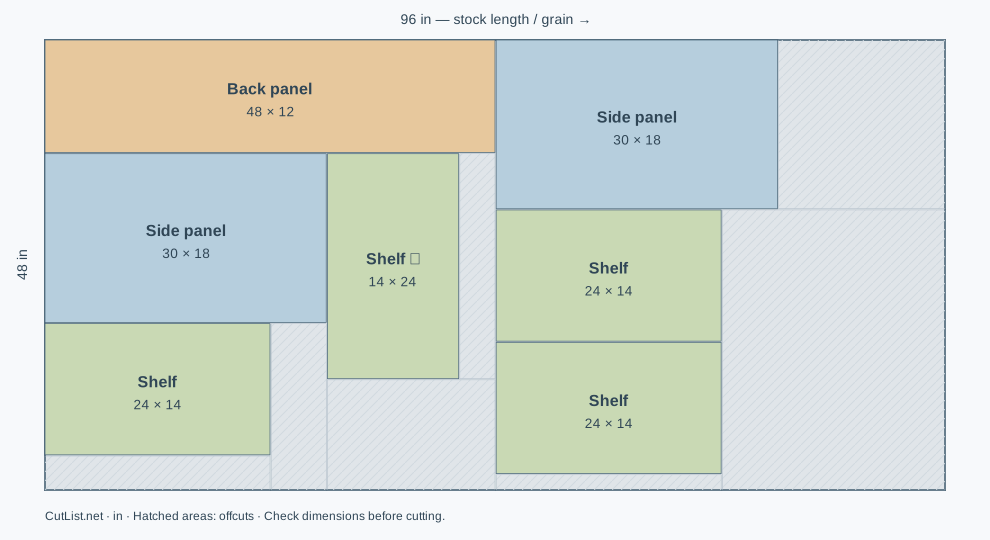
Try a small shelving project with two 30 × 18-inch side panels, four 24 × 14-inch shelves and one 48 × 12-inch back panel. The example starts with two available 96 × 48-inch sheets and a 1/8-inch kerf. The calculated results below show what gets used.
A nominal 4×8 sheet is only a starting point. Measure your stock, allow for damaged edges, and check the grain on visible faces. Turn on grain direction to prevent the planner rotating those faces for a tighter fit.
All 7 parts fit. Yield is the area of placed parts divided by the full area of the sheets actually used—not all available stock. Unused sheets do not lower the yield.
The hatched regions are offcuts, not sawdust. Keep pieces you can safely reuse; small slivers may still be scrap. Kerf is the material the blade removes. This example allows rotation, has grain unlocked and uses no edge trim.
Length and width tell the planner more than the size of a rectangle. With grain locked, they also determine which way the part can face.
Use finished dimensions if the part will go straight into assembly. If you plan to cut oversize and trim later, add that machining allowance to the part dimensions yourself. The tool does not calculate joinery, sanding or edge-banding allowances.
Do not add blade kerf to each part. Enter it once under Cutting options; the tool leaves room for the blade between cuts.
Keep grain direction makes every part’s length follow the stock length and overrides Allow 90° rotation. The setting applies to the whole project. Check the visible face of each panel before entering its dimensions.
Use matching material names on stock and parts. For example, assign “Plywood 18 mm” to the cabinet sides and their stock, and “Plywood 6 mm” to the back and its stock. Include the thickness in the material name, and use exactly the same name on matching parts and sheets.
A 1/4-inch Edge trim removes 1/4 inch from each edge, so a 96 × 48-inch sheet has a 95 1/2 × 47 1/2-inch interior. Trim includes the trimming kerf and must be zero or at least the blade width. It does not reserve extra material on individual parts.
Take a 48 × 30-inch sheet and two 24 × 24-inch panels. Their combined area is only 80% of the sheet, but at a 1/8-inch kerf they need 48 1/8 inches side by side. Stacking them exceeds the 30-inch width. Rotating square panels changes nothing.
More sheets may be necessary, but an unplaced result is not proof that no better layout exists. The tool compares several cutting layouts, not every possible arrangement. Each numbered cut runs straight across the current piece. A tighter layout is only useful if you can safely make its cuts with your equipment.
Save the current sheet as a vector SVG, or export a CSV of all placed parts with their positions. Print / PDF opens your browser’s print dialog with a report for every sheet, including dimensions, cut order, offcuts and any unplaced parts. Choose “Save as PDF” there to keep a PDF copy.
Save keeps your most recent inputs in this browser. For a backup you can open on another device, choose File → Download project file (.json). Your project does not need to be uploaded.
Make your cutting planA cut list optimizer arranges rectangular parts on your available sheets and allows for the material removed by the saw blade. This tool uses guillotine cuts: each cut runs straight across the current piece from edge to edge. It compares several layouts to reduce material use, but a better arrangement may still be possible.
Enter the measured sheet length and width, usually around 96 × 48 inches, then add the length, width and quantity of each part. Set your saw kerf and grain requirements before optimizing. Use the plywood example above to try a complete project, then replace its sizes with your own.
Yes. To measure it, take a scrap with a known width, make one safe through-cut and measure the two remaining pieces along the same axis. Original width minus the sum of their widths is the kerf. For example, 10 inches minus 4 inches minus 5 7/8 inches gives a 1/8-inch kerf. Use a suitable scrap and follow your saw’s instructions. Enter that value under Blade kerf, rather than adding it to part sizes.
Yes. Keep grain direction locks every part’s length to the stock sheet’s length and disables 90° rotation. Enter each part’s length along its required grain direction. The grain setting applies to all parts in your project; you cannot set a different direction for individual parts.
Yes. Calculating, viewing, saving locally and exporting results are free and require no account. Each run supports up to 500 parts and 100 rows per table. Computation runs in your browser, so very large jobs may take longer on older devices.
Use Save to keep the latest project in this browser, then Open saved to return to it. Download a project file (.json) to keep a backup or open it on another device; clearing browser storage removes the local copy. You can switch between inches and millimeters, including fractional inch inputs. Dimensions are rounded to the nearest 0.001 mm for calculation; this is not a guarantee of cutting accuracy.
Dividing total part area by sheet area gives a lower bound, not a cutting plan. Kerf, grain restrictions, edge trim and the shape of remaining spaces can all require more stock. Review the unplaced-part messages, check material names and quantities, then compare the balanced and length-first strategies. Do not turn off a real grain or kerf constraint just to improve the percentage.
Follow the numbers in order. Each cut runs across the piece left by earlier cuts. Coordinates refer to the original sheet’s top-left corner, not your saw fence setting. The layout does not account for your clamps, blade guards, minimum safe workpiece sizes or machine capacity. Check the sequence against your equipment and support requirements before cutting.
Your project is calculated and saved locally in your browser. We use Google Analytics 4 (GA4), which may use cookies, to understand visits and tool usage, such as starting a calculation or exporting a layout. Usage statistics include part counts, calculation time and material yield ranges. We do not send project names, part dimensions, material names or uploaded file contents to Google Analytics.